Batch DNS Settings
You can update DNS settings for multiple domains at once from the NamesLink console, including batch name server changes and batch DNS record creation.
Batch Modify Name Server
-
Log in to the NamesLink console and go to Domain Management > My Domains > Batch Operations.
-
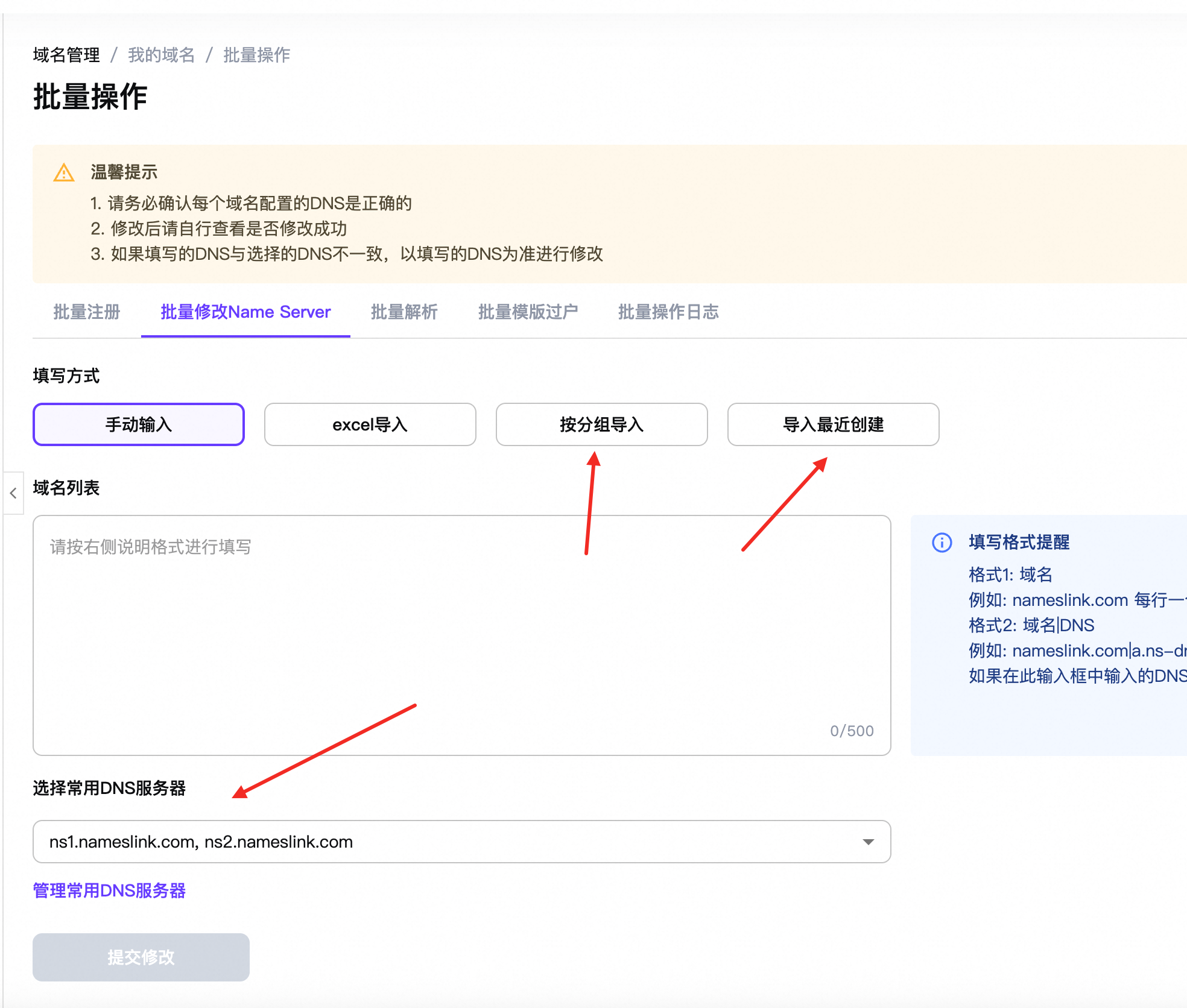
Switch to the Batch Modify Name Server tab.
-
In the Fill Method section, choose how to import the domain list:
- Import by Group: select a domain group to import all domains in that group.
- Import Recent Creations: quickly import recently created domains.
-
Under Select Common DNS Server, choose ns1.nameslink.com, ns2.nameslink.com.
-
Click Submit Changes and wait for the system to finish processing.
Batch Add DNS Records
-
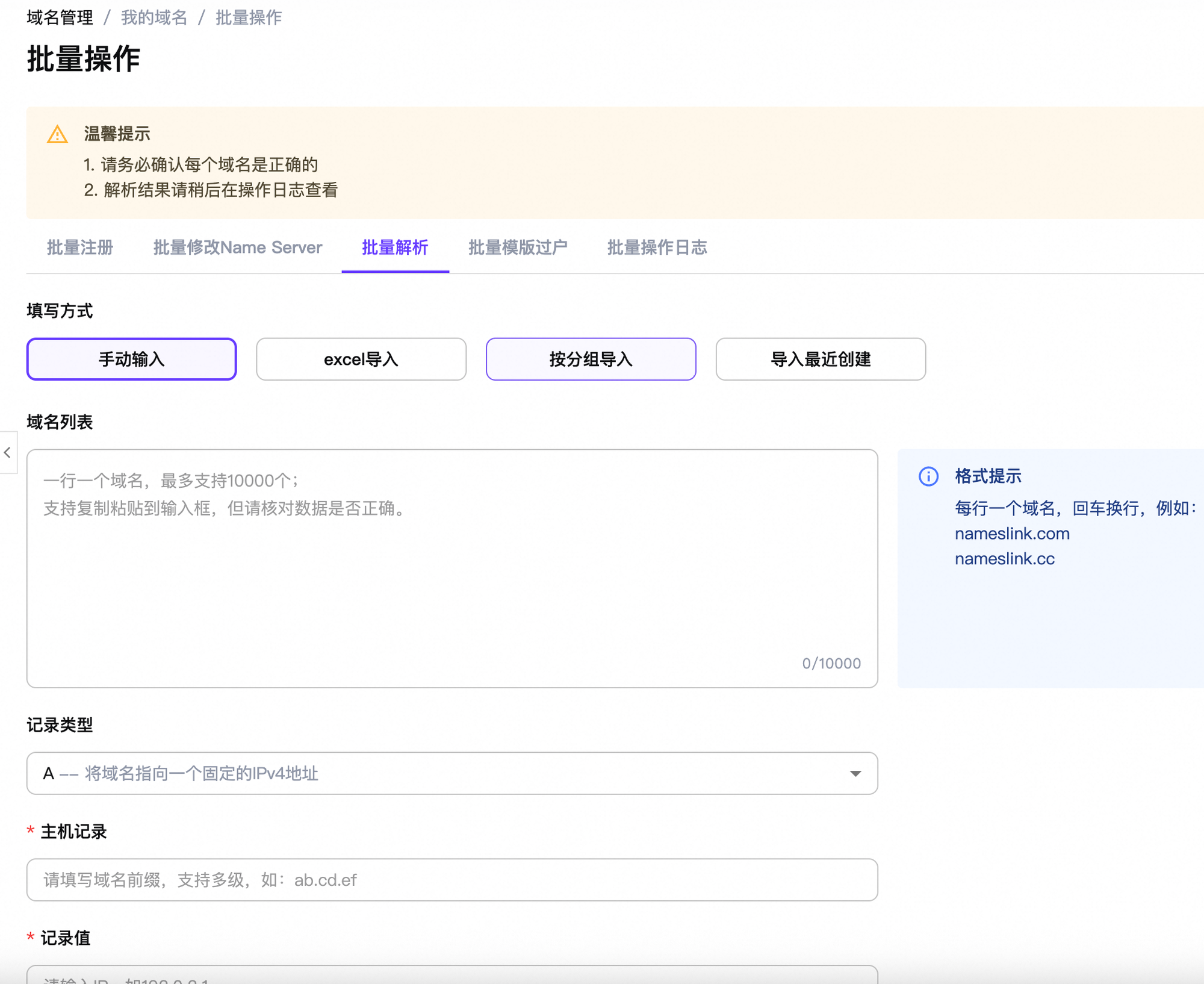
In the same Batch Operations page, switch to the Batch DNS Records tab.
-
Import the target domains using either Import by Group or Import Recent Creations.
-
Fill in the DNS record details to apply the same configuration to all selected domains:
- Record Type: for example, A, CNAME, MX, TXT.
- Host Record: the subdomain prefix, such as
wwwor@. - Record Value: the corresponding value for the selected record type.
-
Click Submit and wait for the system to process the changes.
Notes
- Please be patient when processing a large number of domains. The system may need some time to complete the batch operation.
- You can check the Batch Operation Log to view the execution results and verify whether the changes were successful.