Email Auto-Forwarding
You can configure auto-forwarding in your mailbox so that incoming messages are automatically sent to another email address. This is useful when you want to keep a backup, receive mail in another inbox, or forward messages to a colleague.
Steps
-
Log in to your mailbox as a user.
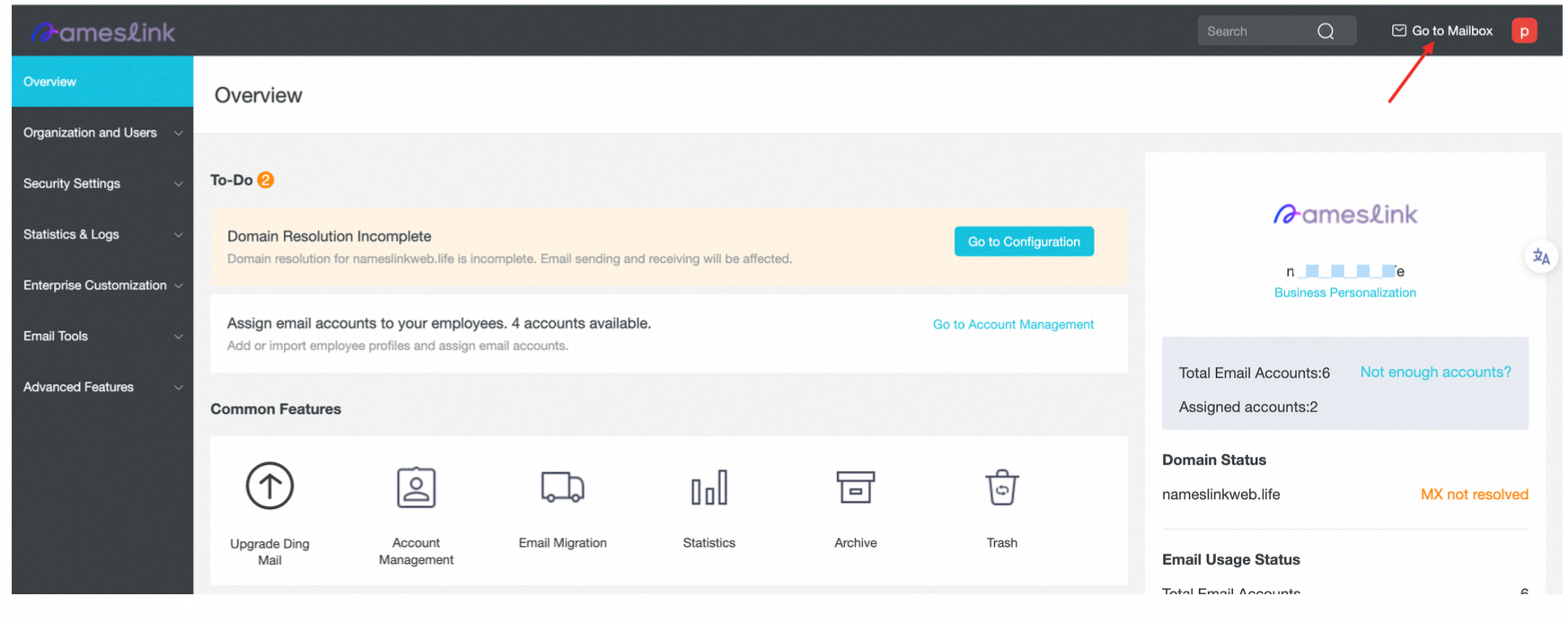
-
Open Mailbox Settings.
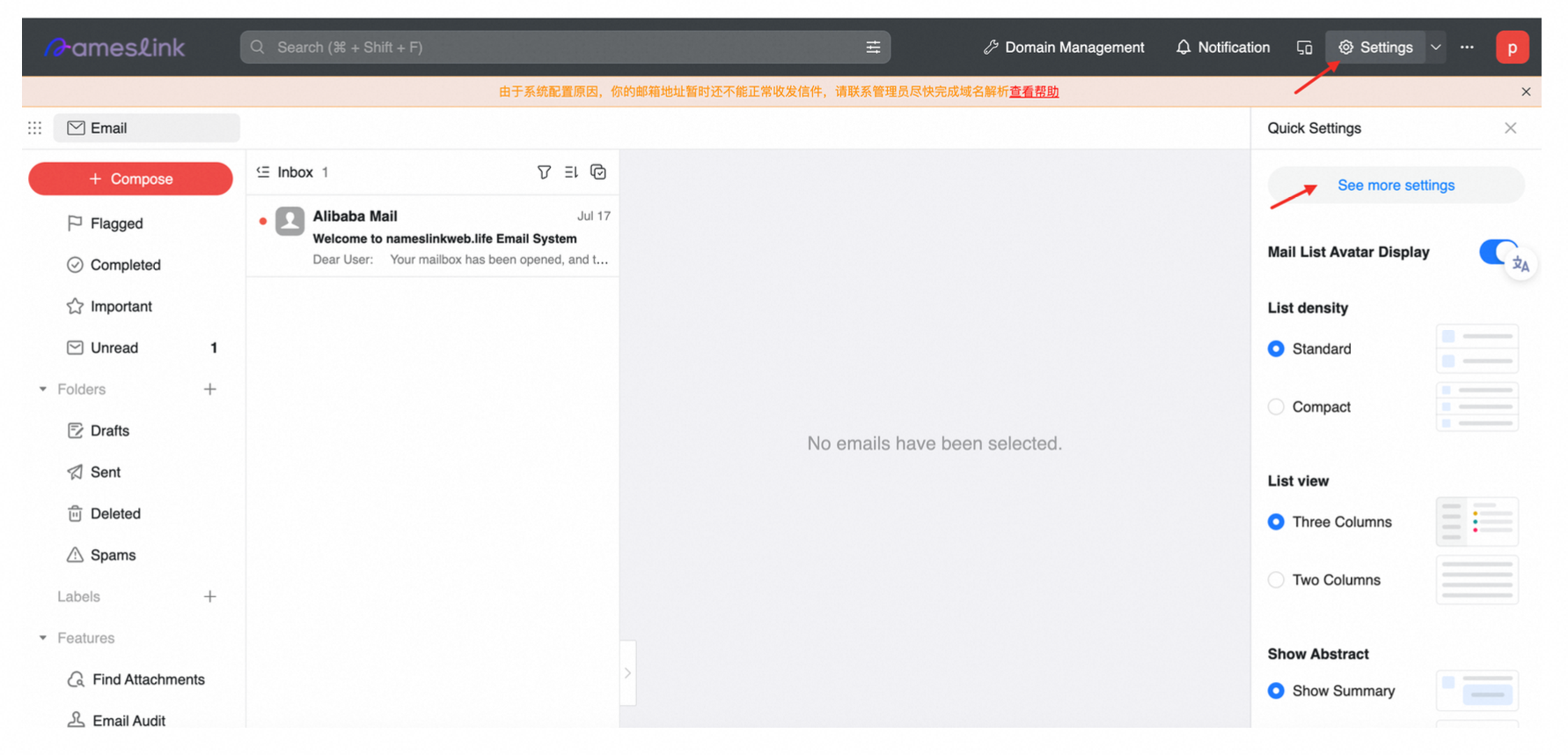
-
Navigate to Settings > Auto Forwarding.
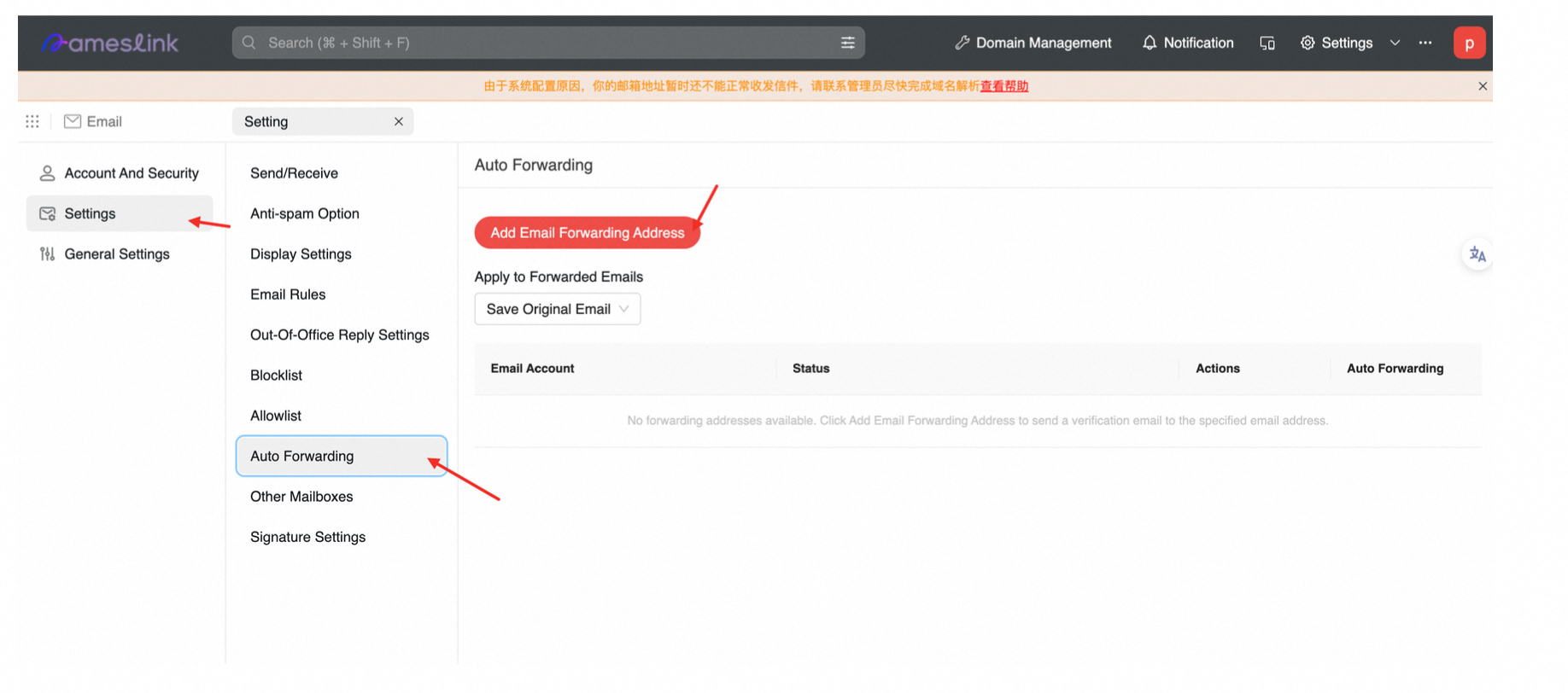
-
Enter the email address you want to forward messages to.
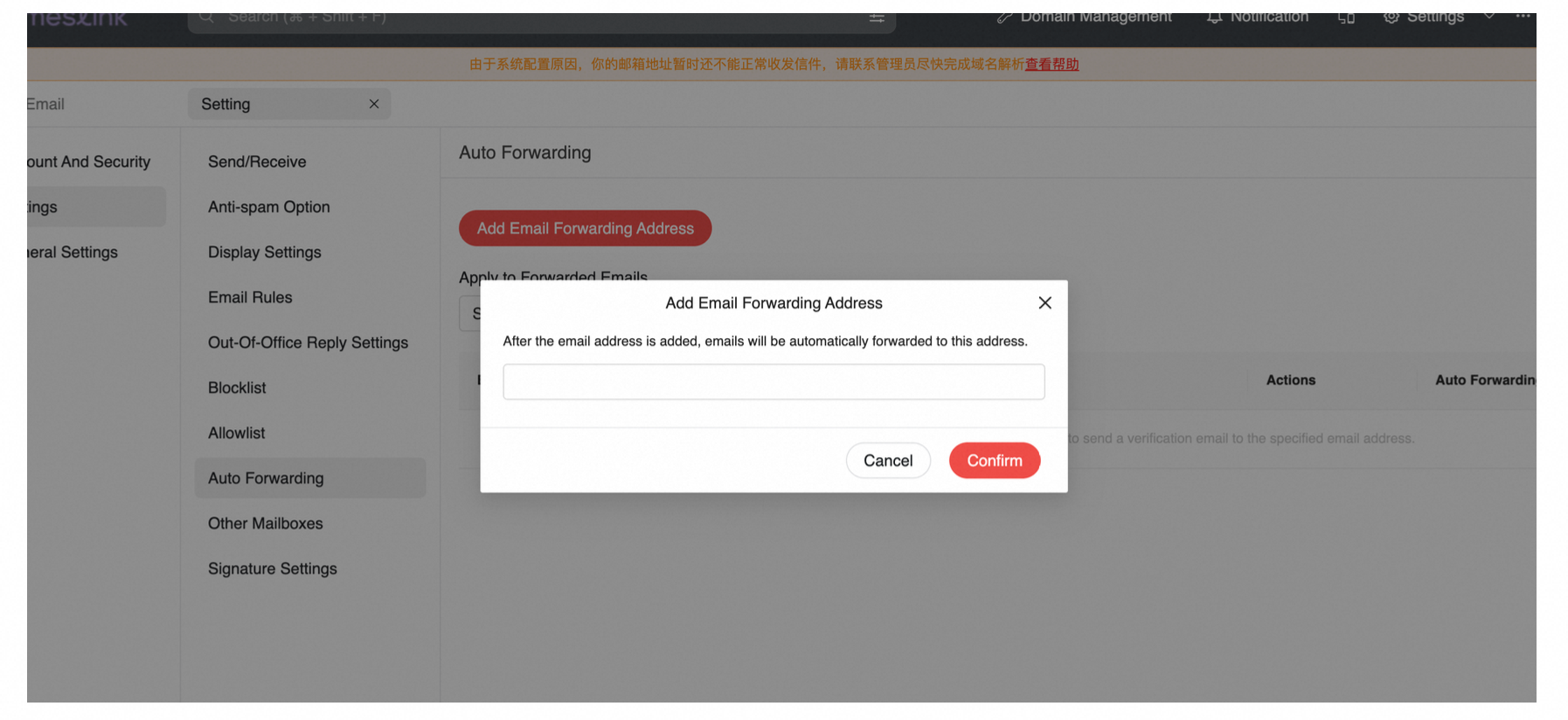
-
Follow the instructions: log in to the forwarding email address you added, and click the verification link to complete authentication.
After authentication is successful, incoming messages will be automatically forwarded to the specified email address.