IMAP/SMTP Settings
To use a third-party email client such as Outlook, Foxmail, or a mobile mail app with NamesLink Business Email, both the administrator and the mailbox user must complete the following steps.
The screenshots below show the Chinese-language webmail interface. The menu names and positions are the same in the English interface.
Administrator Operations
-
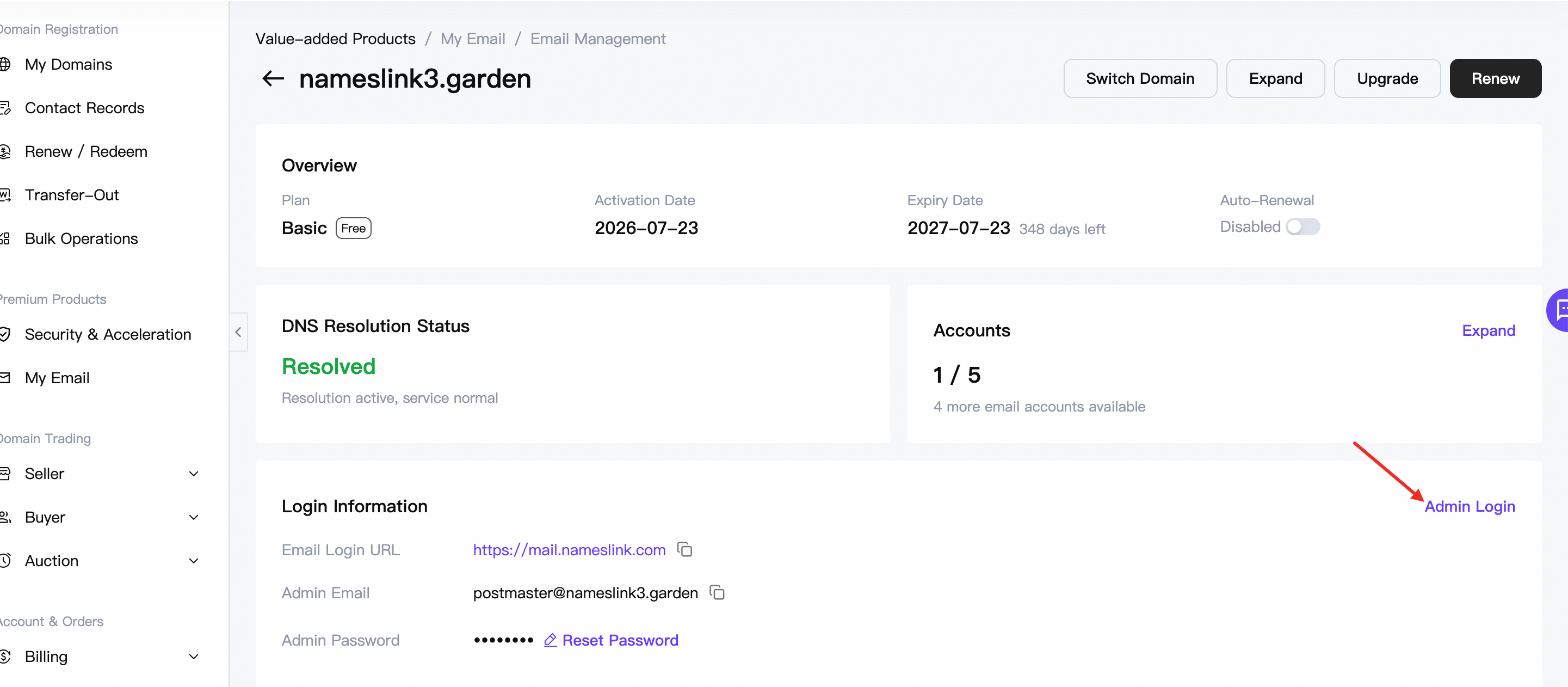
Log in to the business email admin dashboard.
-
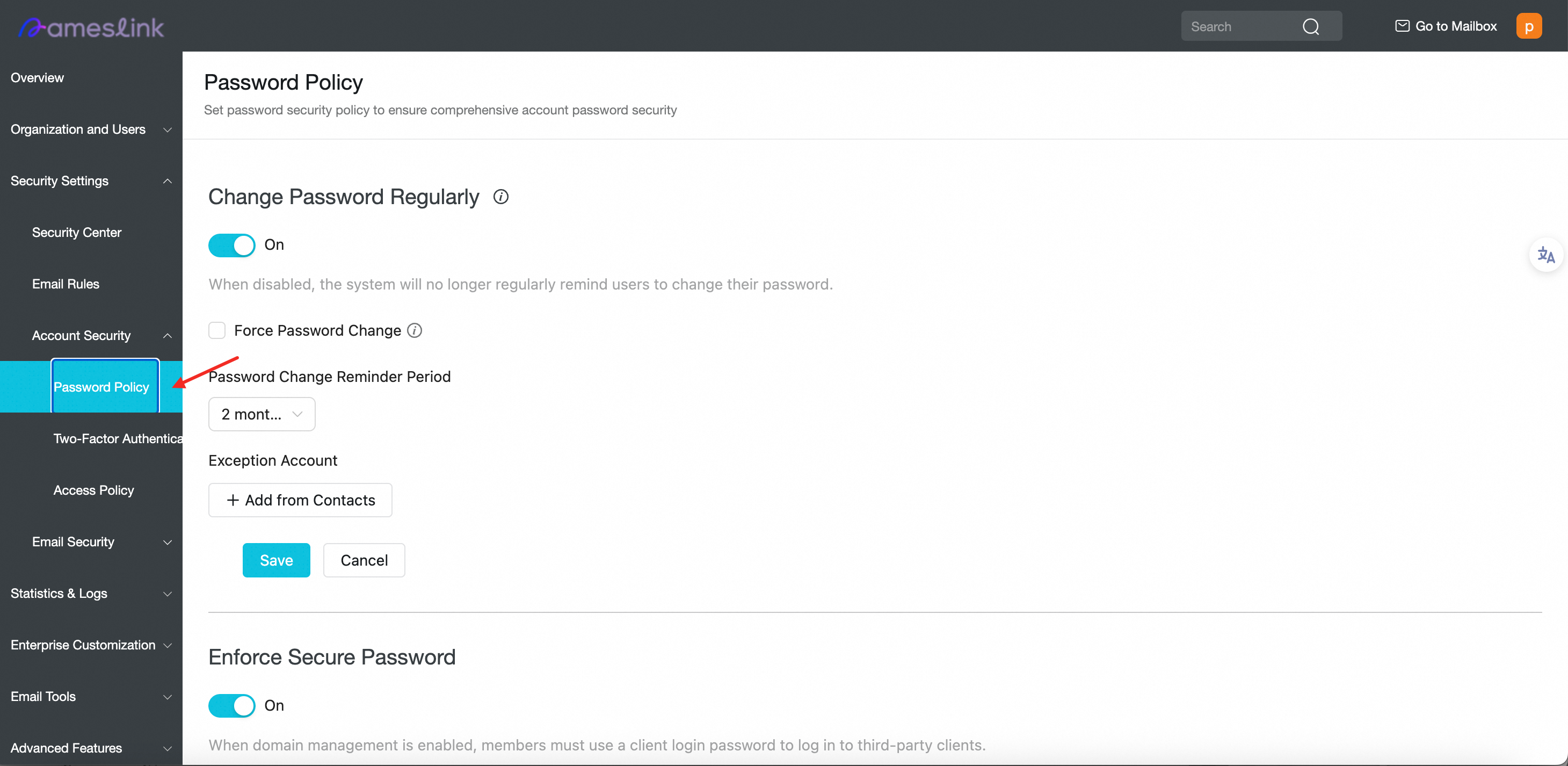
Navigate to Security Policy Settings.
-
Enable Enforce Secure Password.
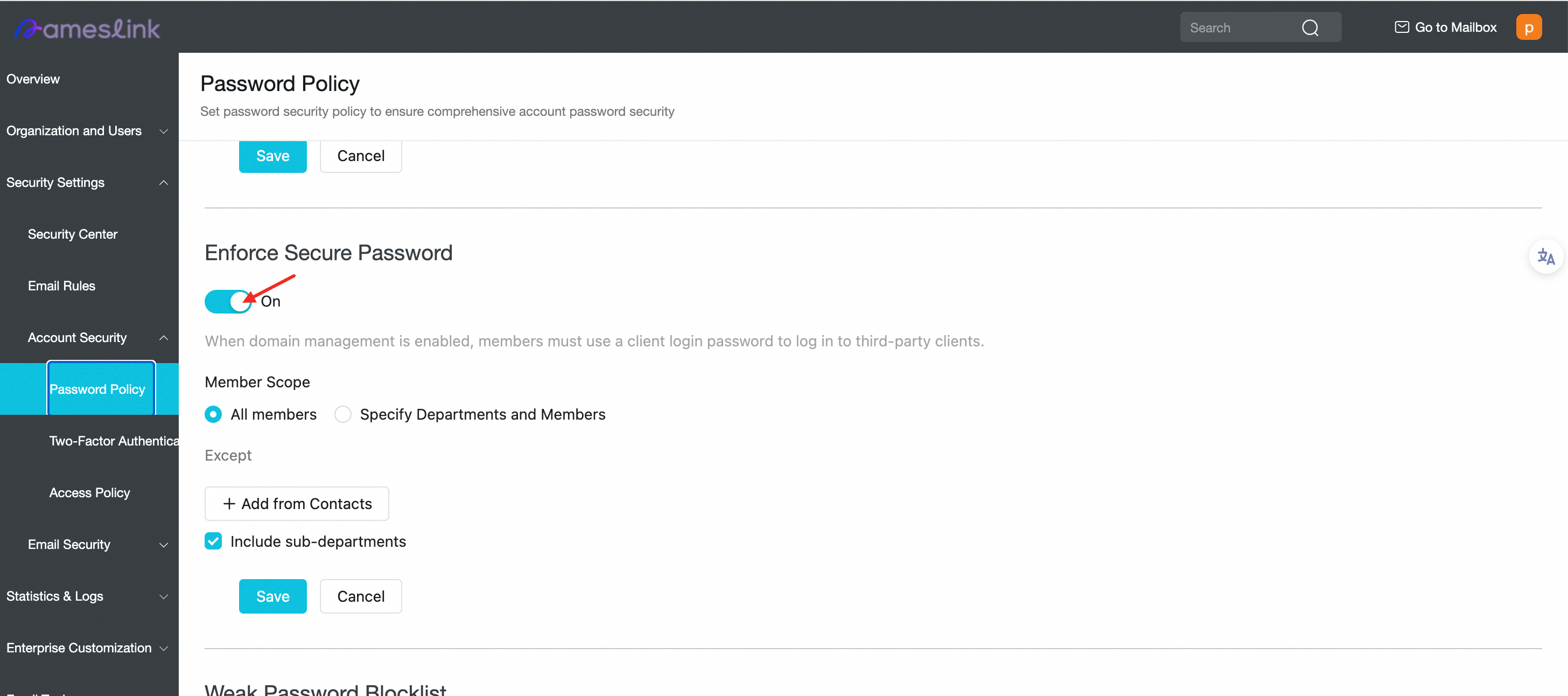
Once this is enabled, users can generate third-party client passwords from the webmail.
Email User Operations
-
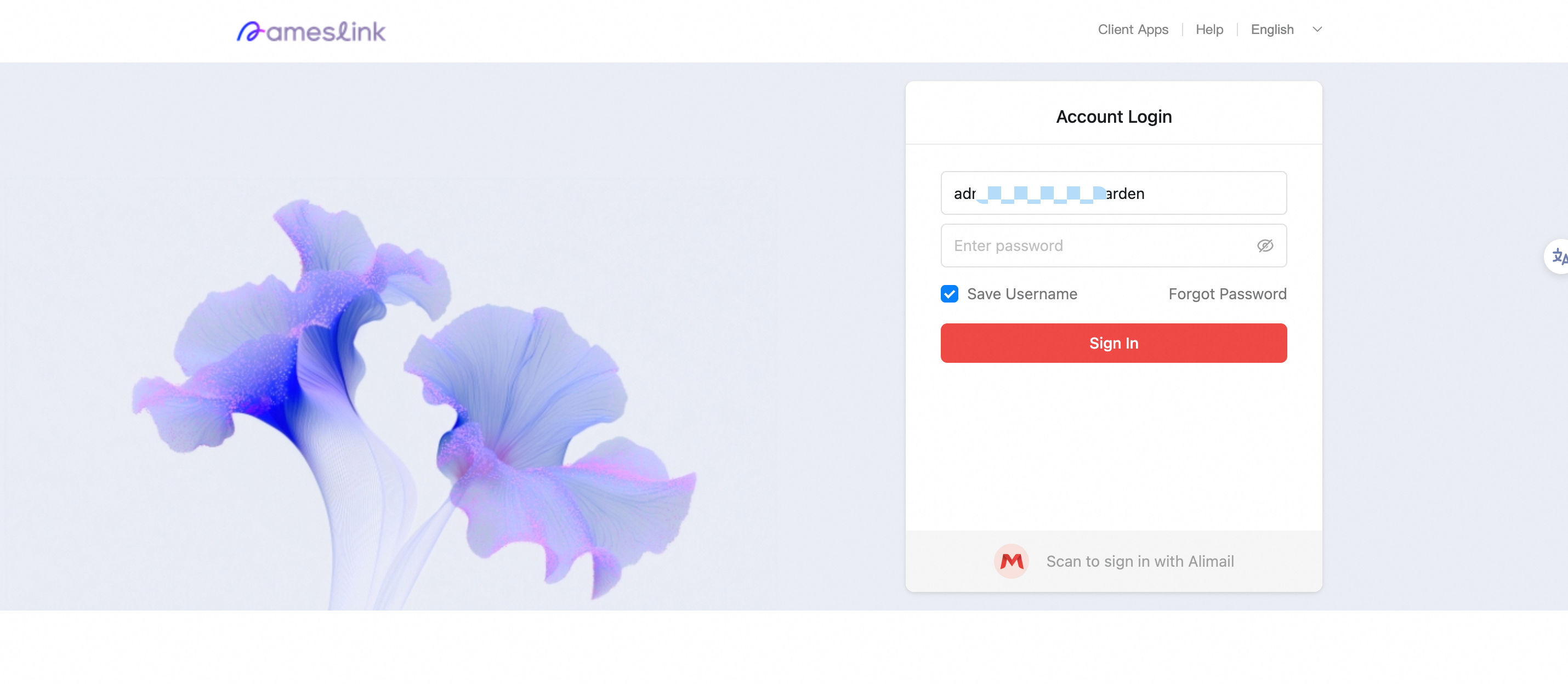
Log in to your mailbox.
-
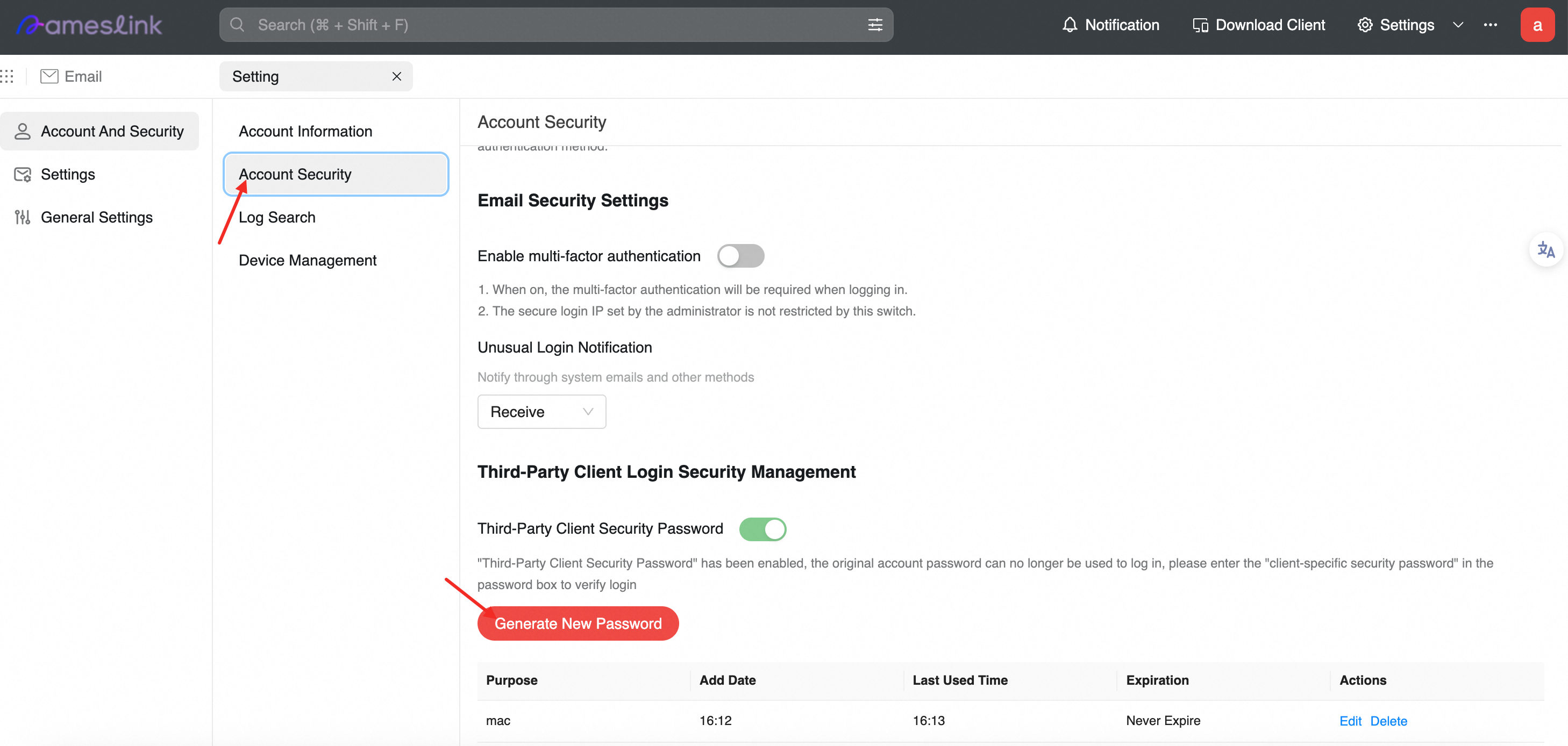
Open Settings > More Settings.
-
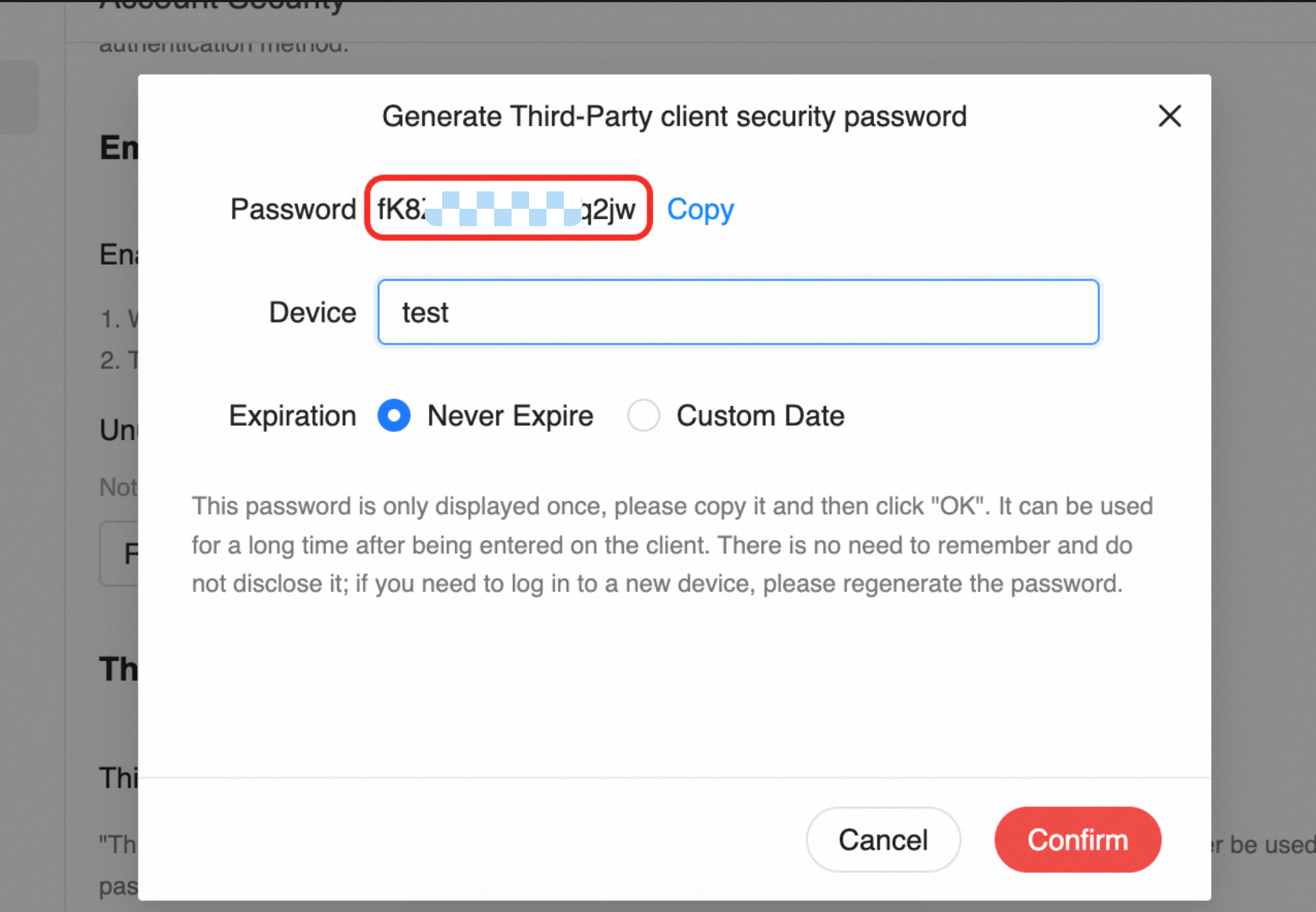
Create a Third-Party Client Password and save the generated password.
-
Configure your third-party client with the following information:
- Account: your email address
- Password: the third-party client password you just created (not your login password)
- Servers: IMAP:
imap.sg.aliyun.com; SMTP:smtp.sg.aliyun.com
Recommended Server Configuration
| Type | Server | SSL Port |
|---|---|---|
| IMAP (receive) | imap.sg.aliyun.com | 993 |
| POP3 (receive) | pop.sg.aliyun.com | 995 |
| SMTP (send) | smtp.sg.aliyun.com | 465 |
It is recommended to use IMAP + SMTP with SSL encryption enabled.