How to Use NamesLink Business Email
What Is Business Email
NamesLink Business Email lets you create dedicated email addresses for your domain, such as name@yourdomain. Compared with personal email, business email is better suited for brand presentation, business communication, and team collaboration.
After activation, you can check the email status in the console, log in to the administrator mailbox, manage the number of accounts, renew the service, enable auto-renewal, upgrade the plan, or change the bound domain.
What to Prepare Before Activation
Before activating Business Email, make sure you already own a NamesLink domain.
If the domain is not using the NamesLink Nameserver, the system cannot automatically configure the email DNS records, and you need to add them yourself at the domain's nameserver provider. Therefore, we recommend setting your domain's nameserver to the NamesLink Nameserver (Domain - Manage - Set DNS).
How to Activate Business Email
-
Log in to the NamesLink dashboard.
-
Go to the domain details page.
-
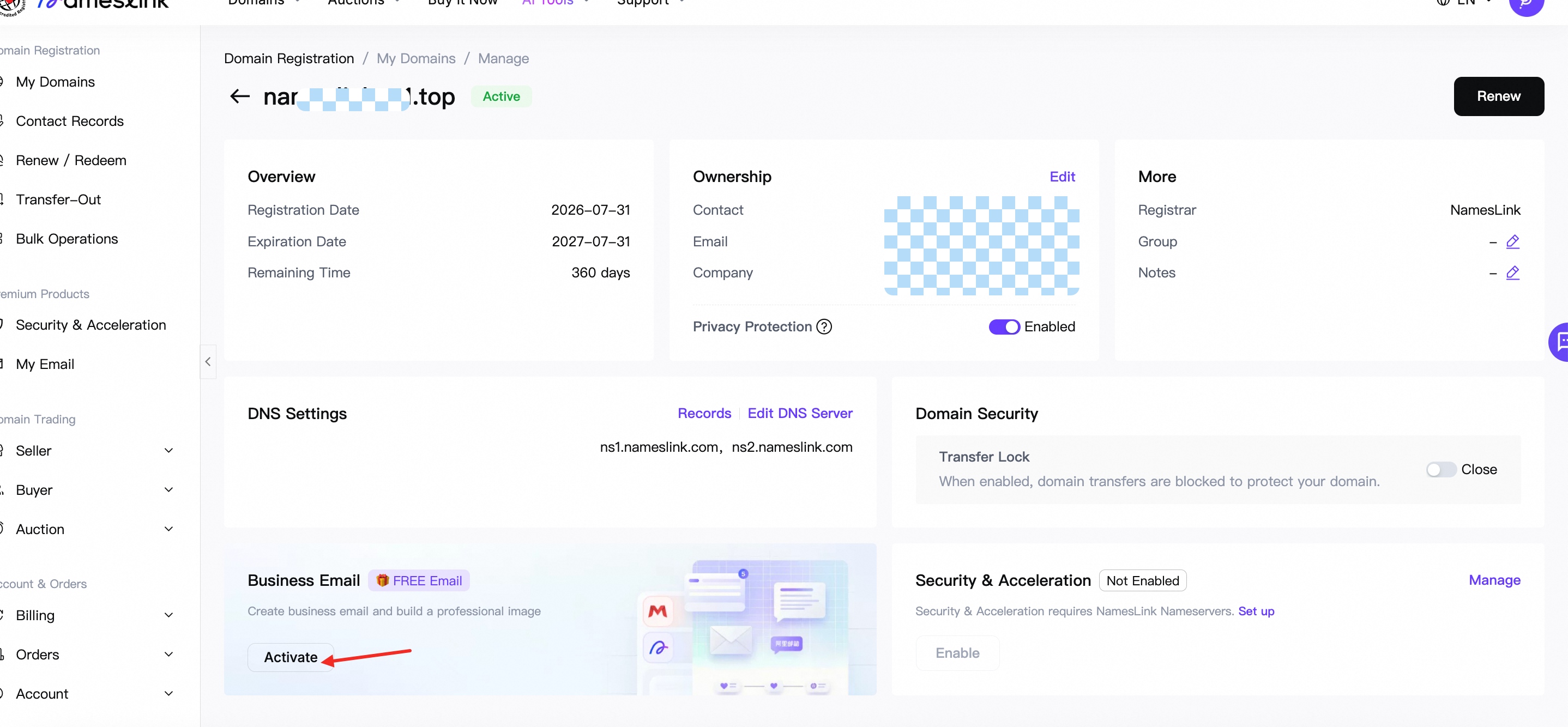
Find the "Business Email" module on the page.
-
If the current domain has not activated email yet, click "Activate".
-
Select a suitable plan in the plan selection dialog.
-
There is currently a "Buy a domain, get email" promotion: you can activate the 5-account Basic edition for free for 1 year when purchasing email. (The specific rules are subject to what is displayed on the page.)
-
Click "Activate Now", go to the order confirmation page, and complete the payment.
-
After payment is completed, the system will automatically create the email instance.
After activation, the email status usually shows "Resolving" first. Once the DNS records take effect, the status changes to "Normal", and the email service is ready to use. If the domain uses the NamesLink Nameserver, the required DNS records are added automatically by the system; otherwise, you need to add them yourself at the domain's nameserver provider.
Business Email Editions
The following editions are currently available:
| Edition | Default Accounts | Mailbox Storage | Suitable For |
|---|---|---|---|
| Basic (not publicly sold) | 5 email accounts | 5 GB/mailbox | New user trial |
| Standard | 3 email accounts | 500 GB/mailbox | Daily team work |
| AI Premium | 3 email accounts | 5 TB/mailbox | Larger storage, AI capabilities, and advanced office needs |
Some accounts may be eligible for free email benefits for new users; the actual display on the page shall prevail.
How to View and Manage Business Email
You can manage your business email through the following entries:
-
From the domain details page: open the details of the corresponding domain and click "Manage" in the "Business Email" module.
-
From the email list: go to the "Business Email" page in the console, find the corresponding email domain, and click "Manage".
The email details page displays the following information:
| Information | Description |
|---|---|
| Edition | Current business email plan edition |
| Activation Time | When the email service was created |
| Expiration Time | Validity period of the current service |
| Auto-Renewal | Whether auto-renewal is currently enabled. When enabled, the renewal fee is deducted from your account balance, so please keep sufficient balance; insufficient balance may cause the deduction to fail |
| DNS Resolution Status | Whether the email DNS records have taken effect |
| Account Count | Number of accounts in use and the account limit |
| Login Information | Email login address, administrator email, and administrator password management entry |
How to Log In to Business Email
Click "Login" or "Admin Login" in the email list or email details page, and the system will open the email login page.
If fetching the login link fails, please try again later. If you still cannot log in, check whether the email status is "Normal".
How to Set DNS Records Without the NamesLink Nameserver
If your domain does not use the NamesLink Nameserver, add the DNS records yourself at your DNS provider. The required records are as follows:
| Host | Record Type | Priority | Record Value |
|---|---|---|---|
| @ | MX | 5 | mx1.sg.aliyun.com |
| @ | MX | 10 | mx2.sg.aliyun.com |
| imap | CNAME | - | imap.sg.aliyun.com |
| pop3 | CNAME | - | pop.sg.aliyun.com |
| smtp | CNAME | - | smtp.sg.aliyun.com |
| CNAME | - | mail.sg.aliyun.com | |
| @ | TXT | - | v=spf1 include:spf.sg.aliyun.com -all |
DNS Resolution Status Explained
Business email relies on DNS records to complete the mail sending and receiving configuration. The following statuses may appear on the page:
| Status | Meaning | Suggested Action |
|---|---|---|
| Resolving | The system is synchronizing the DNS records required by the email service | Wait for the records to take effect, usually a few minutes |
| Normal | DNS has been resolved and the email service is available | You can log in and use it normally |
| Resolution Failed | The DNS records failed the verification | If the domain uses the NamesLink Nameserver, simply click "Re-resolve". If the domain does not use the NamesLink Nameserver, add the DNS records yourself at your DNS provider, then click "Re-resolve" after confirming the configuration is correct. |
| Expiring Soon | The email service is close to its expiration date | Renew in time or enable auto-renewal |
| Expired | The service has passed its validity period | Please renew as soon as possible |
| Released | The service has been released and can no longer be managed | Re-activate if you need to use it again |
When the NamesLink Nameserver is used, the system automatically adds the MX, CNAME, and TXT records required by the email service, so you do not need to add them yourself. If you have manually modified the DNS, resolution may fail or the email service may become unavailable.
What to Do If Resolution Fails
If the page shows "DNS resolution failed", follow these steps:
-
If the domain does not use the NamesLink Nameserver, confirm that the DNS records have been configured at the domain's nameserver provider.
-
Confirm that the domain is not bound to another business email instance.
-
Click "Re-resolve" in the email list or details page.
-
Wait for the system to re-add and verify the DNS records.
-
Refresh the page later to check the status.
If it still fails after multiple retries, contact the NamesLink support team and provide the email domain and instance information.
How to Enable or Disable Auto-Renewal
You can toggle auto-renewal in the email list, the domain details page, or the email details page.
When auto-renewal is enabled, the system attempts to renew the service automatically before it expires, reducing the risk of email interruption due to expiration. When auto-renewal is disabled, you need to renew manually before the expiration date.
If updating the auto-renewal status fails, please try again later.
How to Renew Business Email
Click "Renew" in the email list or email details page, go to the order confirmation page, and complete the payment.
After a successful renewal, the email expiration time is updated. If the email has already expired, the service status will be restored to available after a successful renewal.
How to Increase the Number of Email Accounts
If the current number of email accounts is not enough, click "Expand" on the email details page.
When expanding, you need to select a new account quantity, which must be greater than the current account limit. The expansion fee is prorated based on the remaining service time of the email, and the actual price is displayed on the page.
How to Upgrade the Edition
If the current edition is not AI Premium, you can click "Upgrade" on the email details page.
The available upgrade targets depend on the current edition:
| Current Edition | Can Upgrade To |
|---|---|
| Basic | Standard, AI Premium |
| Standard | AI Premium |
| AI Premium | Already the highest edition |
After the upgrade is completed, the system updates the email edition and account specifications.
How to Change the Bound Domain
You can click "Change Domain" on the email details page.
Before changing the domain, please note the following impacts:
-
The suffix of all email accounts will change to the new domain. For example,
user@old.combecomesuser@new.com. -
The email DNS records of the original domain will be removed, and mail sent to the original domain will no longer be delivered.
-
The new domain needs to go through DNS resolution again, and the email service may be briefly interrupted during this period.
-
Existing email accounts and historical mail data will not be affected.
The new domain must meet the following conditions:
| Condition | Description |
|---|---|
| Belongs to the current account | You can only select domains under your own account |
| Not bound to another email instance | A domain cannot be bound to multiple email instances at the same time |
How to Reset the Administrator Password
In the "Login Information" section of the email details page, click "Reset Password".
The new password must meet the following rules:
-
8 to 64 characters in length.
-
Contains at least three of the following: uppercase letters, lowercase letters, digits, and special characters.
-
Must not contain the administrator email account name.
-
After submission, MFA verification is required; the password takes effect only after the verification passes.
What Administrators Need to Do
1. Create Employee Email Accounts
After logging in, the administrator enters the Alibaba Mail domain management console and creates employee accounts via the following path:
Organization & Users > Employee Accounts > Create Account
When creating an account, it is recommended to fill in at least the following information:
| Information | Example | Description |
|---|---|---|
| Name | alan | Displayed in the contact list |
| Email Address | alan@yourdomain.com | Used by the employee to log in and send/receive mail |
| Initial Password | Set by yourself | The employee should change it after the first login |
| Change Password on First Login | Recommended to enable | Improves account security |
| Security Phone | Employee's phone number | Used for recovery, verification, and security management |
2. Set Up Organizations and Mail Groups
If the team is large, it is recommended that the administrator first build a basic organizational structure, such as Sales, Operations, and Finance, to facilitate subsequent account and permission management.
If multiple people need to share one receiving address, you can create a mail group.
3. Set IMAP/POP3/SMTP Service Permissions
If third-party clients are needed, the administrator also needs to confirm that the corresponding protocols are enabled for the employee accounts.
Recommended configuration:
| Protocol | Purpose | Suggestion |
|---|---|---|
| IMAP | Sync incoming mail across devices | Recommended to enable |
| SMTP | Send mail | Must be enabled |
| POP3 | Download mail to local devices | Not recommended unless necessary |
Recommended: IMAP + SMTP
For detailed email configuration instructions, please visit
What Employees Need to Do
1. Get the Email Account and Initial Password
After the administrator creates the account, the following information should be sent to the employee:
| Information | Example |
|---|---|
| Email Address | name@yourdomain.com |
| Initial Password | Set by the administrator |
| Login URL | https://mail.nameslink.com |
| Whether to change the password | As required by the administrator |
| Whether clients are allowed | According to the company security policy |
2. First Login
The employee opens the login URL: https://mail.nameslink.com
Enter the business email address and initial password.
If the administrator has enabled "Change Password on First Login", the employee needs to set a new password as prompted.
After the first login, employees are advised to complete the following:
-
Change the initial password.
-
Bind a security phone or security verification method.
-
Check personal profile and display name.
-
Send a test email to a colleague or a personal mailbox.
-
Confirm that mail can be received and sent normally.
3. Use the Web Version or Official Client
The simplest way is to use the webmail directly, or install the official Alibaba Mail client.
These methods usually do not require manual configuration of IMAP, POP3, or SMTP parameters, and are suitable for most employees to get started quickly.
4. Configure Outlook, Foxmail, or Mobile Mail Apps
If the company allows third-party clients, the employee needs to confirm two things first:
-
The administrator has allowed third-party client logins.
-
The administrator has enabled IMAP/SMTP or POP3/SMTP for the account.
IMAP + SMTP with SSL encryption is recommended.
Recommended configuration:
| Type | Server | SSL Port |
|---|---|---|
| IMAP (receive) | imap.sg.aliyun.com | 993 |
| POP3 (receive) | pop.sg.aliyun.com | 995 |
| SMTP (send) | smtp.sg.aliyun.com | 465 |
IMAP is preferred over POP3. IMAP keeps mail status in sync across the web, desktop, and mobile, which is better for multi-device work.
FAQ
Why does the status show "Resolving" after activation?
After business email is activated, the system needs to configure and verify the DNS records. If the domain uses the NamesLink Nameserver, this is usually done automatically and no action is needed; if the domain does not use the NamesLink Nameserver, you need to configure the records yourself at your DNS provider.
Once the records are configured, it takes some time for public DNS resolution to take effect. Usually you just need to wait a few minutes and refresh the page; in some cases it takes 10 to 30 minutes, and rarely 30 to 60 minutes. The page may keep showing "Resolving" during this period.
Why does it show "Resolution Failed"?
The common cause is that the domain is not using the NamesLink Nameserver and the records have not been configured at the DNS provider, so the MX records required by the email service do not point correctly to the Alibaba Mail servers. Confirm the DNS settings are correct and then click "Re-resolve".
Why is the Basic edition sometimes not visible?
The free Basic edition benefit is usually tied to new user promotions. Whether it is displayed depends on your actual account benefits; it is not a regularly purchasable edition.
Will changing the domain delete my mail?
No. Changing the domain does not affect existing email accounts or historical mail data, but the email address suffix will change, and mail sent to the old domain will no longer be delivered.
What if I forget the administrator password?
You can reset the administrator password on the email details page. When resetting, you need to enter a new password that meets the rules and complete MFA verification.
Can I still use the email after it expires?
The service may become unavailable after expiration. It is recommended to renew before expiration or enable auto-renewal. If the instance has been released, you need to activate it again.
How do I confirm that my domain is using the NamesLink Nameserver?
Go to the domain details page and check the DNS settings. If the NS shows ns1.nameslink.com and ns2.nameslink.com, the domain is using the NamesLink Nameserver.
How do I manage email accounts?
On the email details page, click "Admin Login" to enter the business email management console. There, you can create email accounts, disable accounts, modify account information, or manage mailbox members in your organization. The number of accounts you can create cannot exceed the account limit of the current plan; if you need more accounts, expand first.
What is the difference between "Expired" and "Released"?
"Expired" means the email service has passed its validity period and may not work properly, but it can usually be restored by renewing. "Released" means the instance has been released and can no longer be managed; to continue using business email, you need to activate it again. The actual recoverable scope is subject to the page prompts.
Does enabling auto-renewal guarantee success?
Auto-renewal attempts to renew the service automatically before expiration, but it may still fail due to insufficient account balance, abnormal payment methods, or system restrictions. It is recommended to keep an eye on the email expiration time and make sure your account has a valid payment method or sufficient balance.
Why can't I send and receive mail immediately after activation?
After activation, the system needs to create the email instance and configure the DNS records. Both DNS propagation and the mail provider's checks take time, during which the email may show "Resolving". It usually recovers within a few minutes to tens of minutes, and rarely close to 1 hour.
Why is the email status still "Resolving" when the DNS already has MX records?
The page status is based on the mail provider's check results. Even after MX records are visible in public DNS, the mail provider may confirm them slightly later due to caching or check intervals.
Can I delete the DNS records automatically added by the system?
It is not recommended to delete or modify the email DNS records automatically added by the system. Deleting the MX, CNAME, or TXT records may cause the email to fail to send/receive mail, login issues, or resolution failures.
Can one domain activate multiple business email instances?
No. A domain can only be bound to one business email instance at a time. If you need to switch email services, handle the binding through the domain change feature.
Can the old email addresses still receive mail after changing the domain?
After changing the bound domain, the email DNS records of the original domain are removed, and mail sent to the old domain's email addresses will not be delivered properly.
Does the administrator mailbox count toward the account quota? How is the business email account quota calculated?
No. The system always creates one administrator mailbox, usually postmaster@yourdomain. The administrator mailbox cannot be changed and is only used to log in to the business email management console and manage the organization's email accounts; it does not count toward the number of email accounts you purchased. This mailbox has a small storage capacity and is not recommended for daily business use; to send and receive business mail normally, create regular member mailboxes. The account quota in the plan only counts the regular email accounts you can create.
Can employees log in while DNS is still resolving?
You can create accounts and log in to the management console first, but sending and receiving mail depends on DNS resolution. Before the resolution takes effect, mail may not be sent or received normally.