Import and preview troubleshooting
First identify the step: import failed means check the files; local appearance works but interactions do not means check the preview environment; a shared or formal URL fails means check the link and publication state.
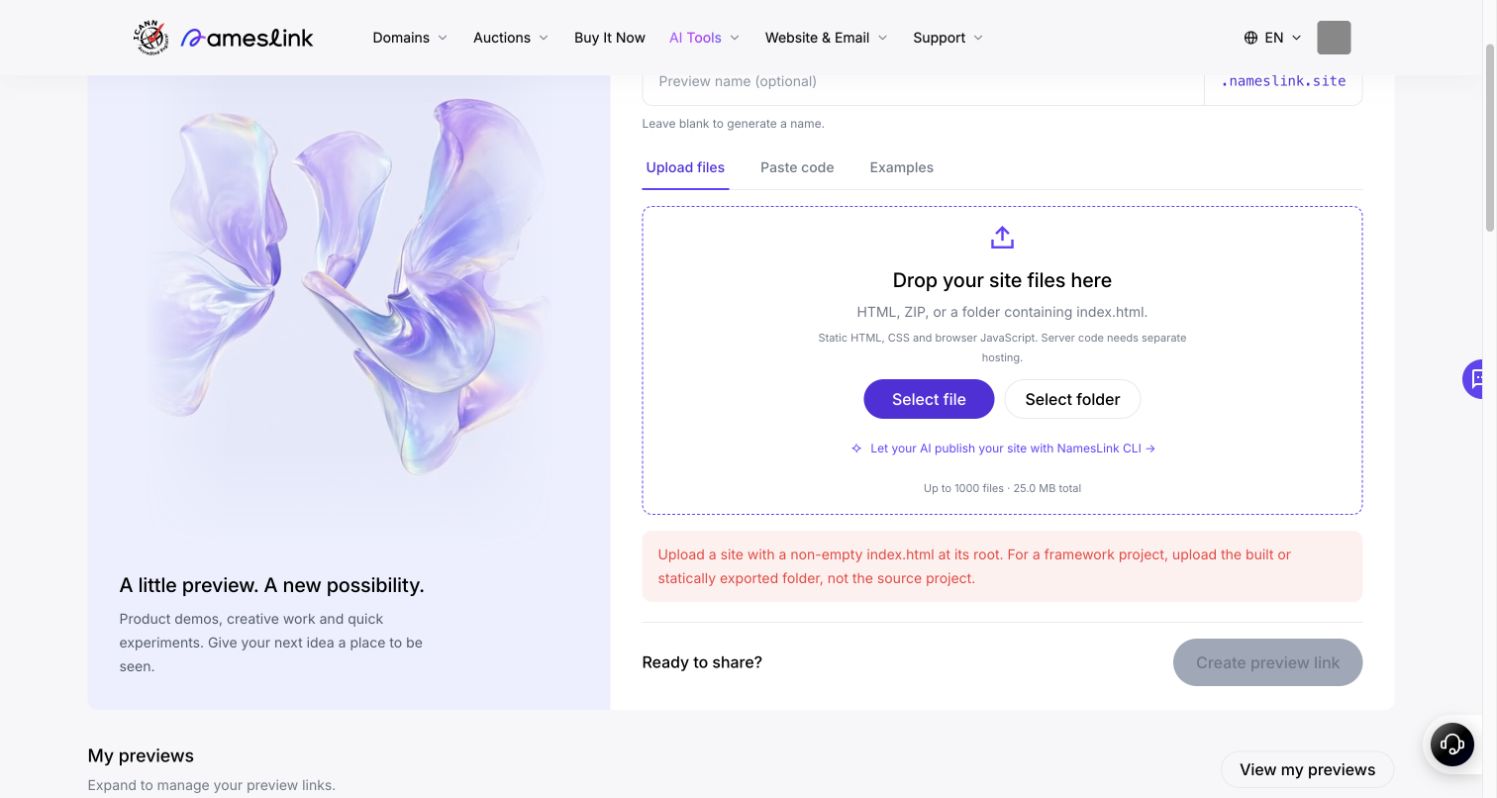
File import fails
| Message or symptom | What to do |
|---|---|
| ZIP cannot be read | Extract it locally, then create a normal ZIP again. Renaming another archive format to .zip does not convert it. |
A non-empty root index.html is required | Check its name and size. Opening the selected output directory should show the homepage directly. For a ZIP, compress that directory's contents so index.html appears at the first level. |
| A server runtime is required | Upload a static build or export. Server rendering, APIs, and databases need a separate backend. |
| Too many files or too much data | Remove source, dependencies, and unnecessary build files; optimize large images. Follow current limits. A small ZIP may still exceed the extracted limit. |
| HTML encoding error or garbled text | Save the HTML as UTF-8, include <meta charset="utf-8">, and upload again. |
After fixing the problem, select the files again. A single HTML file can be edited with Edit code. Wait until the error clears, the preview updates, and the link button becomes available.
Images or styles are missing
- Upload the complete output directory or ZIP. Uploading only HTML does not include neighboring images or CSS.
- Keep relative paths such as
images/cover.jpg. Avoid local paths such asC:\...,/Users/..., orfile://.... - Match filename case exactly:
Cover.jpgandcover.jpgmay differ. - The local preview disables network requests. Check external resources using the shared link.
Buttons, animation, or APIs fail locally
The local preview disables JavaScript and network requests. Check static layout first, then create a shared link and test interactions in a new window. If they still fail there, inspect the browser console and requests, including the frontend API address, HTTPS, and cross-origin configuration.
Anything shipped to a browser must not contain private API keys, database passwords, or other credentials. Keep those in a separate backend.
The embedded preview is unavailable
This console message needs to be checked separately from the website itself:
- Use the open-website action to open the current URL in a new window.
- The new window works: return and retry the preview. Browser policies, website embedding policies, or the network may restrict the embedded view. Do not remove security headers just to make it embed.
- The new window also fails: check a temporary link's expiration. For a formal domain, check whether publication is pending or the site has stopped. Continue checking the original pending operation.
- If the problem persists, record the full message and time, then contact support.
An expired preview cannot serve as a permanent address. Bind a domain and publish for long-term access.
What to send support
Use the contact page or ticket@nameslink.com. Include the time and timezone, steps, browser version, exact message, input type (HTML / ZIP / folder), approximate file count and size, and a masked screenshot. Include a site or operation ID in a private ticket if available.
Do not send passwords, login authorization URLs, API keys, verification codes, or an unchecked private source repository. If a reproduction file is needed, prepare the smallest example that still fails after removing secrets.